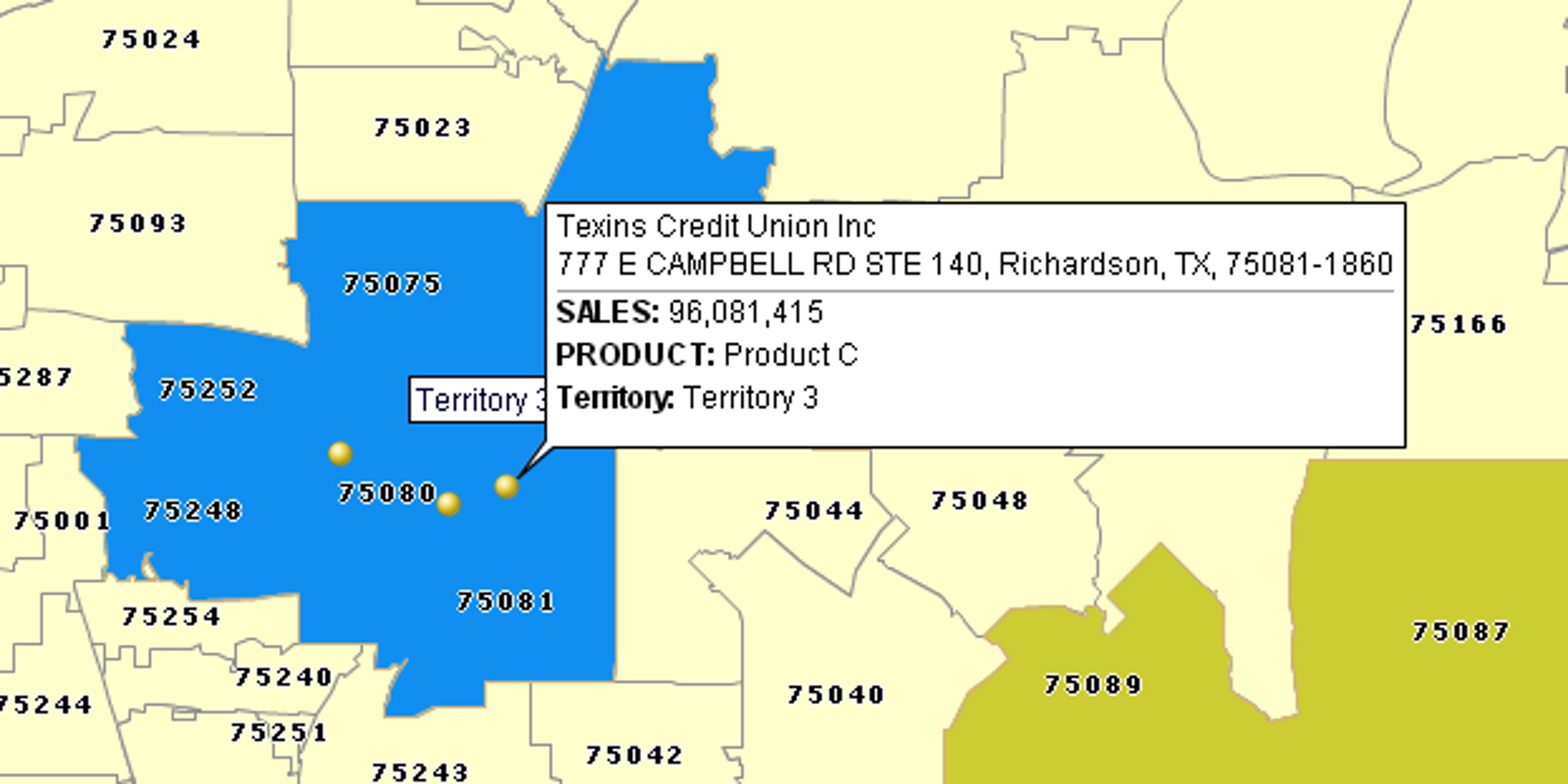
Look up Territory for Customer
This article demonstrates how to reveal territory name servicing particular customer.
- Start by plotting your customer dataset on map and creating your territories. Refer to these articles if you need help on the topics: Plot data from Microsoft® Excel, Manually create territories one-by-one, Import Territories from a File.
- One option to view territory name for a customer is to add territory name to location callout. That is what we will try to show below.
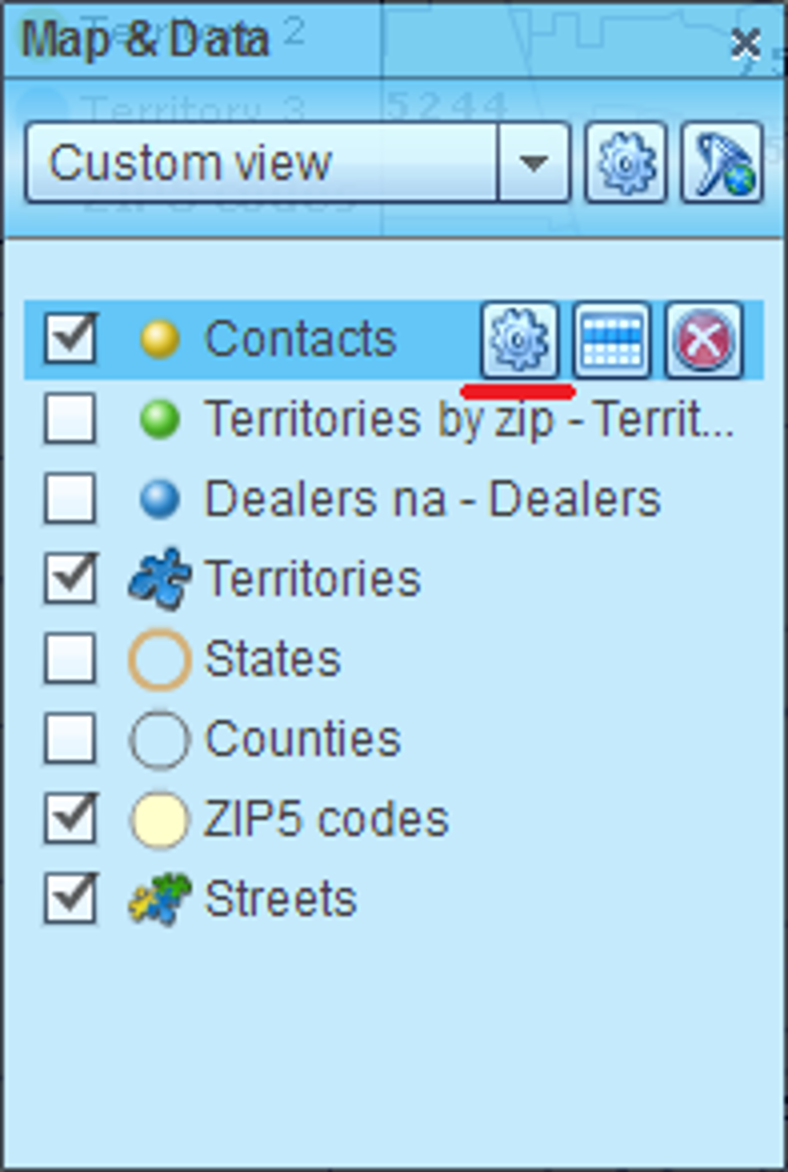
- You can modify customer dataset callouts in ‘Manage map and data dialog’. First of all open Map & Data window if it is not already open.
- Move mouse pointer over customer dataset name (Contacts in the example below) and click gear icon that will appear.
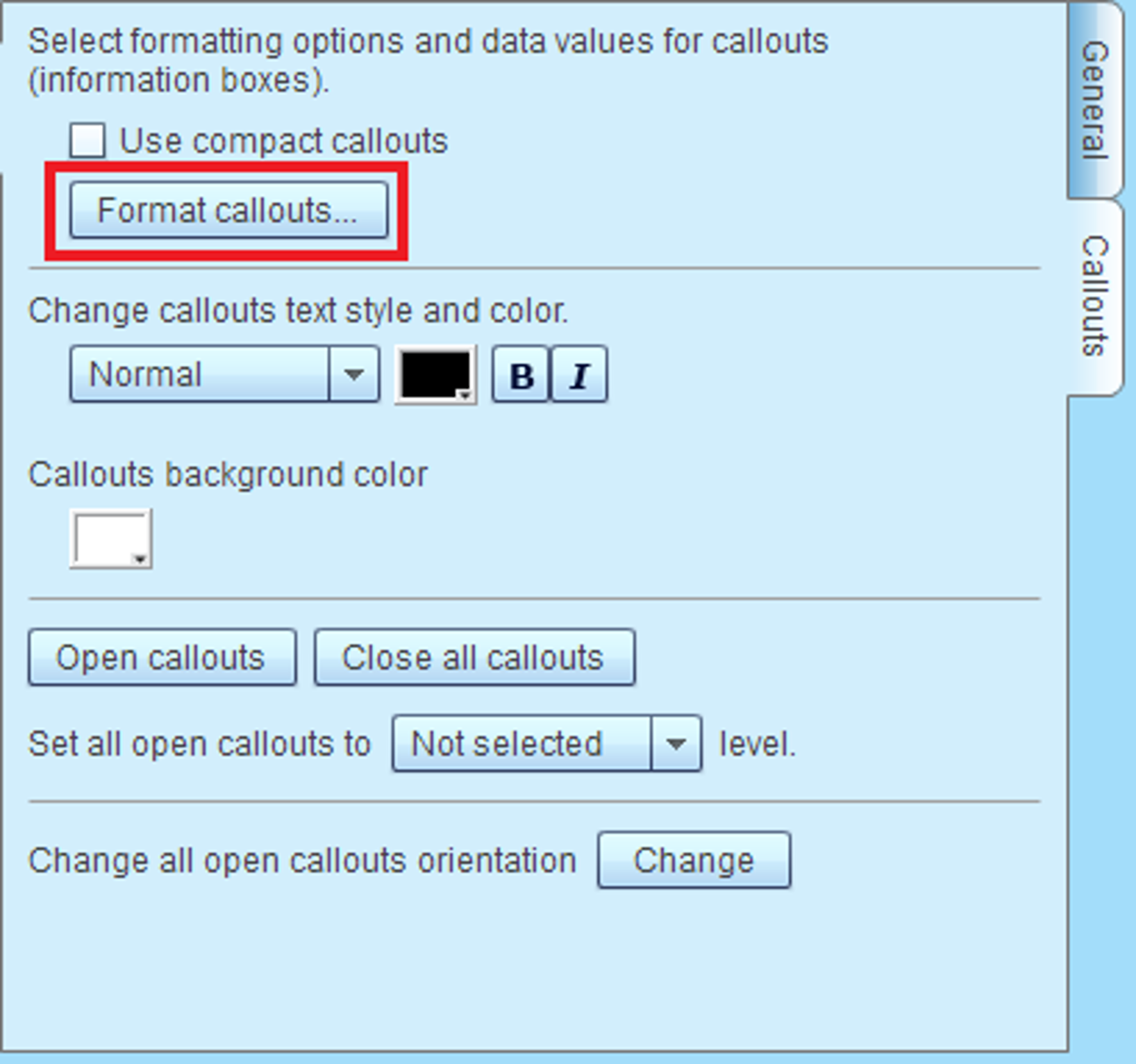
- ‘Manage map and data’ dialog with customer dataset options will pop up. Go to callouts tab and click ‘Format callouts’ button.
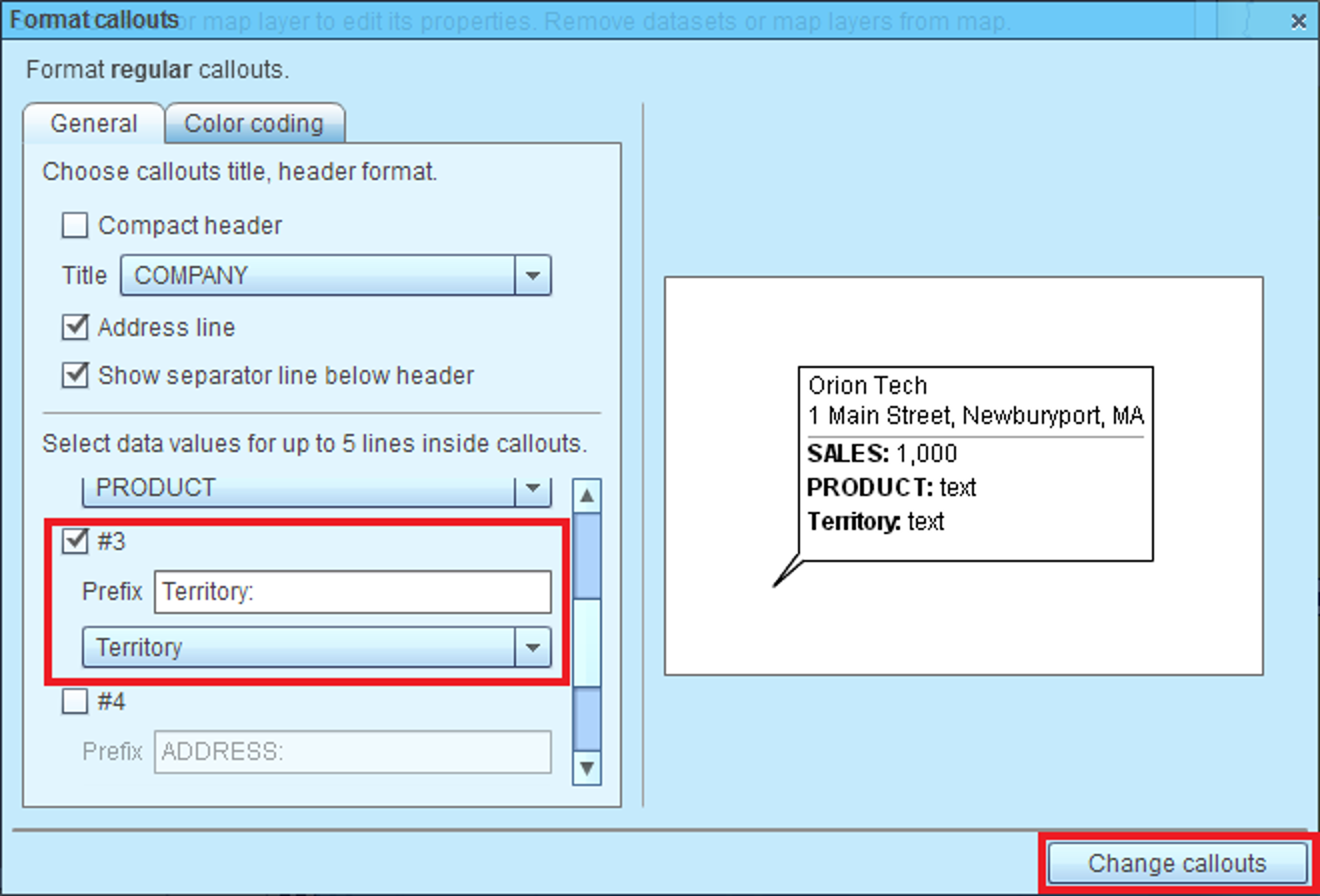
- In ‘Format callouts’ dialog, that will appear, scroll to first available callout information line (look for numbered check box that is unchecked – vacant).
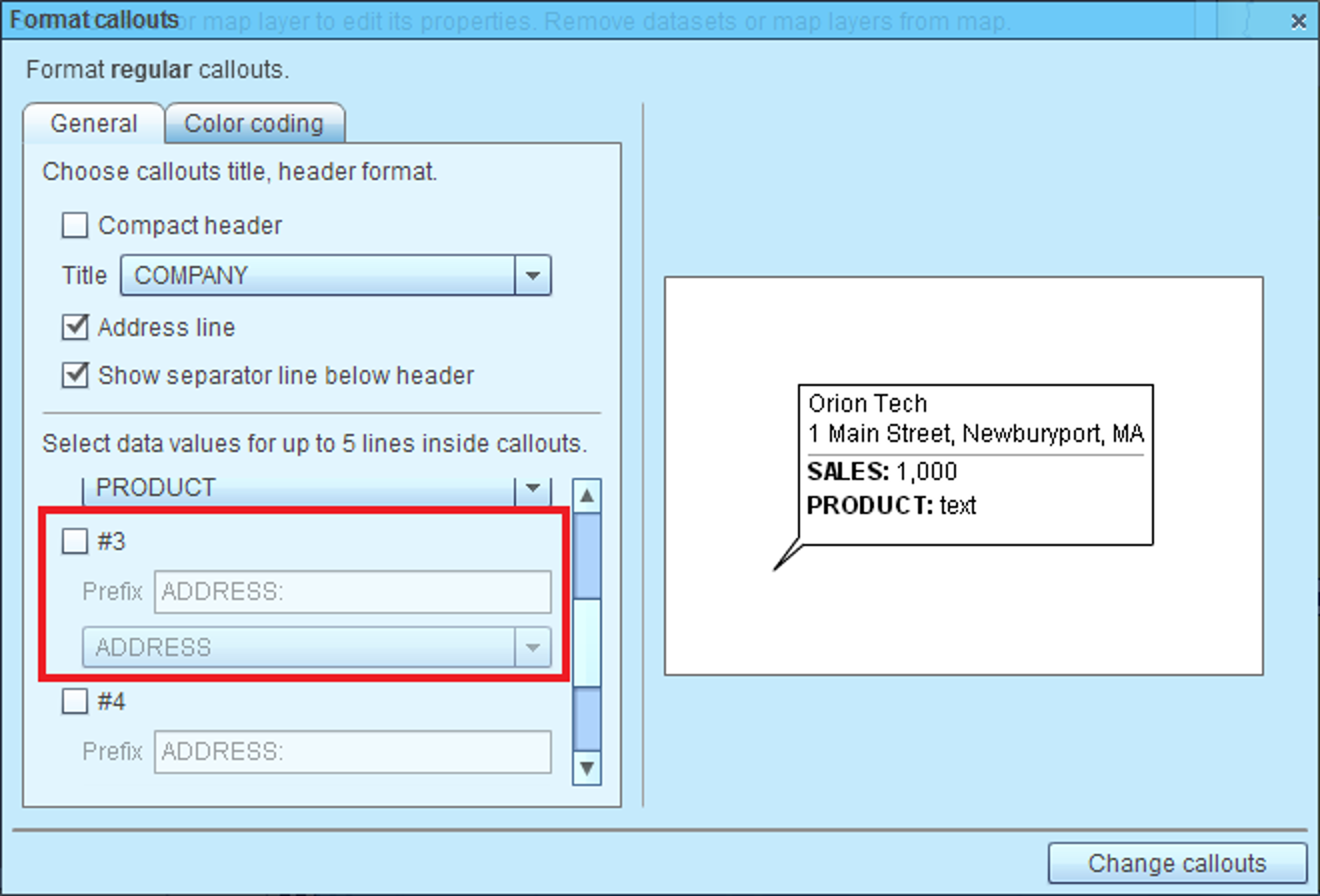
- Check the box to add the line to callout and select Territory column in the drop down. Click ‘Change callouts’ to apply the changes.
- Now if you stop mouse pointer over a customer symbol or open callout for a customer location you will see its territory.